Loading files
This file is pinned to the selected release. Download the original to open it in your design tool.
# Patternflow v3 -- Build Guide
> **Building a v2.x board?** Use the [v2 build guide](BUILD_GUIDE_v2.md) instead — v2 and v3 parts are **not** interchangeable.
This guide walks you through building a Patternflow on the v3 board from scratch. v3.9 is the current revision; a v3.0 board follows the same steps (its USB-C footprint stays unpopulated, see §2). No prior soldering experience needed — every joint is big, forgiving through-hole, and the board was deliberately kept that simple so a first-time solderer can finish it.
**Estimated build time:** about 1 hour of hands-on work (~30 min soldering + ~30 min assembly), plus ~10 hours of 3D printing. Parts shipping typically takes ~2 weeks — order first, build later.
**What's new in v3** (vs. v2.x):
- **Simple screw-terminal power** — strip a USB cable, screw two wires in, done. It is the board's only power input (see Section 2).
- **No SMD passives** — every part you solder is through-hole
- **Snap-fit enclosure** — the back panel clicks shut, wall-mount holes are built in, and the LED matrix needs no bump trimming
- Smaller board. **v2.x boards do not fit v3 cases, and vice versa.**
## Table of Contents
1. [Bill of Materials](#1-bill-of-materials-bom)
2. [Power Input — Use the Screw Terminal](#2-power-input--use-the-screw-terminal)
3. [Order the PCB](#3-order-the-pcb)
4. [3D Printing](#4-3d-printing)
5. [PCB Assembly](#5-pcb-assembly)
6. [Case Assembly](#6-case-assembly)
7. [Wiring & First Power-Up](#7-wiring--first-power-up)
8. [Firmware](#8-firmware)
9. [Final Checks](#9-final-checks)
10. [Known Issues & Design Notes](#10-known-issues--design-notes)
---
## 1. Bill of Materials (BOM)
The authoritative parts list is [`hardware/bom/bom_v3.9.csv`](hardware/bom/bom_v3.9.csv) — every part specified by manufacturer part number. Read the [BOM README](hardware/bom/README.md) for sourcing notes before ordering. (Holding a v3.0 board? Use [`bom_v3.0.csv`](hardware/bom/bom_v3.0.csv) and see the note in Section 2.)
Budget **US$100–200**. The lower end is the well-sourced build where nothing goes wrong: 3D printing filament ~$30, LED matrix panel ~$20, ESP32-S3 ~$13, PCB + remaining parts (encoders, connectors, etc.) ~$35. Shipping, minimum order quantities on the small parts, and a reprint or two are what take it up from there — so treat ~$100 as the floor rather than the estimate.
### On the board
| Ref | Qty | Part | Spec | MPN (Manufacturer) | Notes |
| --- | --- | --- | --- | --- | --- |
| U1 | 1 | ESP32-S3 DevKit | N16R8, 44-pin, 25.4mm row spacing | ESP32-S3-DevKitC-1-N16R8 (Espressif) | AliExpress modules are usually fine too (see the GPIO0 note, §5). Plugs into sockets — never soldered. |
| — | 2 | Female pin socket | 1×22, 2.54mm | PPPC221LFBN-RC (Sullins) | Soldered into the U1 rows; the DevKit rides on top. |
| SW1–SW4 | 4 | Rotary encoder w/ switch | EC11, 5-pin, 20mm shaft | PEC11R-4220F-S0024 (Bourns) | Insert from the **back** of the board. Cheap EC11 packs work but fail more often. |
| J1 | 1 | Box header | 2×8, 2.54mm, vertical | 61201621621 (Würth) | HUB75 ribbon from the panel plugs in here. Match silkscreen orientation. |
| J3 | 1 | Screw terminal | 2-pin, 5.0mm | TB002-500-02BE (CUI Devices) | +5V out to the panel. Every build needs it. |
| J4 | 1 | Screw terminal | 2-pin, 5.0mm | TB002-500-02BE (CUI Devices) | **Power input** (back of board). Required on every build. |
| C11 | 1 | Electrolytic cap | 1000µF 16V, radial D10×L13 | 16PX1000MEFC10X12.5 (Rubycon) | **Observe polarity.** |
### Off the board
| Qty | Part | Notes |
| --- | --- | --- |
| 1 | LED matrix panel — HUB75, 128×64, P2.5, 320×160mm | **Recommended: [Full color 320×160mm P2.5 HUB75 — AliExpress](https://s.click.aliexpress.com/e/_c3SVdcQr)** (affiliate link — supports Patternflow at no extra cost). Its mounting-screw positions are the verified match for the case, and it ships with the ribbon + power cable you'll use. Other panels can work, but **the driver IC decides** — read [LED Panel Compatibility](docs/panel-compatibility.md) and the sourcing rules below **before** buying one. |
| 6–12 | M4 screw, ~10mm | Panel mounting — **sized for the linked panel.** All 12 holes is the exact fit; 6 spread across the corners and middle holds it firmly. Using a different panel? Buy whatever screws *its* mounting holes take (and see the `for_other_panels/` case note in Section 4). |
| 1 | Sacrificial USB cable (it gets cut) | Power feed into `J4` |
| 1 | USB power bank, 5V | Must fit the case compartment |
Key sourcing rules (details in the BOM README):
- **LED matrix panel: the linked listing is the verified, zero-surprises path** — the case is dimensioned around that exact panel. You're free to buy a different one, but **check two things first**: ① the **driver IC** must be one the firmware can drive. The list of chips that work and the ones that stay completely dark, the review keywords to look for, a copy-paste question for the seller and a prompt for handing the listing to an AI assistant are all in **[LED Panel Compatibility](docs/panel-compatibility.md)** — read it before ordering, because the IC is almost never printed in the listing and *"HUB75E" is not a compatibility promise*. ② Compare its mounting-screw positions against the case — if they differ, print the adjustable-mount version (Section 4) or **adapt the enclosure yourself** from the Blender source (`hardware/case/source/`). Verify before you buy, not after.
- **ESP32-S3**: Espressif is the reference part, but AliExpress modules are usually fine — if yours hits the cold-boot issue, one 10k resistor fixes it ([#16](https://github.com/engmung/Patternflow/issues/16)).
- **Encoders**: any 5-pin EC11 with a push switch works — the cheapest packs just fail more often. Reference part: Bourns PEC11R-4220F-S0024 (20mm shaft — print the matching knob file).
### What you also need (not in BOM)
- 3D printer (256 mm bed is enough — see Section 4)
- White and black PLA filament
- Soldering iron, solder, flux, tweezers
- Wire cutters, Phillips screwdriver, small flathead (screw terminals)
- CA glue (bonding the printed halves — Section 4)
- Putty or baking soda + CA glue (optional seam filling, Section 4)
## 2. Power Input — Use the Screw Terminal
**Power the board through `J4`, the 2-pin screw terminal on the back.** Strip a USB cable, clamp the two wires in, done. That's the whole procedure — and on a v3.9 board it's the only one, because the board carries no other power connector.
> 📦 **Holding a v3.0 board?** It has a USB-C receptacle footprint (`USB1`) and two CC pull-downs (`R1`, `R2`). **Leave all three unpopulated** and power through `J4` exactly as described here — don't buy those parts.
>
> **What happened** ([#221](https://github.com/engmung/Patternflow/issues/221)): a board powered through USB-C ran **completely fine for 20–30+ minutes** — no heat, no symptoms — and then suddenly started **smoking at one of the connector pins**, rapidly frying the receptacle and the power path around it. Whether that was a hand-soldering defect on those tight-pitch pins or a structural limit of the 14-pin THT part under the LED matrix's peak current was never settled — so rather than ship an input nobody should populate, **v3.9 removed the footprint entirely.**
>
> ⚠️ **This is why "it seems to work" proves nothing here.** The failure is *delayed* — passing your multimeter checks and running for half an hour does not mean the joint is safe.
>
> The screw terminal has none of this history — it's the original, proven Patternflow power input, and it's exactly as capable.
| | **`J4` — screw terminal** |
|---|---|
| Populate | `J4` (2-pin screw terminal, back of board) |
| Power cable | Any USB cable, stripped, wires screwed in (see Section 7) |
| Difficulty | Easy — a screwdriver, no soldering iron |
<img src="docs/build-guide/images/v3/16_power_path_compare.jpg" width="85%">
***Build the board on the left.*** `J4` carries the screw terminal. On the right is a v3.0 board with the USB-C receptacle and its CC pull-downs populated (circled) — **that configuration is retired**, and v3.9 has no footprint for it.
## 3. Order the PCB
The easiest way is the **PCBWay shared project** — no Gerber upload needed, and ordering through it supports Patternflow development:
<a href="https://www.pcbway.com/project/shareproject/Patternflow_An_LED_synthesizer_776d796c.html"><img src="https://www.pcbway.com/project/img/images/frompcbway-1220.png" alt="PCB from PCBWay" /></a>
Any fab works, though — upload **`hardware/pcb/gerber/patternflow_v3.9_gerber.zip`** to the fab of your choice (JLCPCB tends to be the cheapest), or start from the KiCad source in `hardware/pcb/kicad/`.
> ⚠️ **v3.x only.** Do not order v2.1 for this guide — the v2.1 board is a different size and **will not fit the v3 cases**. Anything in `hardware/pcb/gerber/experiment/` is unverified; don't order it either.
## 4. 3D Printing
**Bambu / MakerWorld users — this section is one click:** the case lives on **[MakerWorld](https://makerworld.com/ko/models/3072492-patternflow-open-source-led-synthesizer-case#profileId-3459015)** with tuned print profiles (the same 4-plate project is in the repo as [`hardware/case/bed_256mm/patternflow_v3.3mf`](hardware/case/bed_256mm/patternflow_v3.3mf)). Slicing manually instead? Case folders are named by **printer bed size** — see [`hardware/case/`](hardware/case/):
| Your printer bed | Print | Notes |
|---|---|---|
| **256 mm** (P1S / X1C / A1 class) | `bed_256mm/encloser.stl` | Body frame, back panels, and LED-panel mount in one STL. **White PLA.** ~10 h total. |
| **~330 mm+** (H2S class) | `bed_330mm/encloser.stl` | The one-piece original — body, closing part, and LED-panel mount in one STL, **no bonding at all**. **White PLA.** Adds a USB pass-through to the DevKit and a cable exit slot — **for wired MIDI/OSC and flashing, not for power** (power is always `J4`, Section 2). |
| **Everyone** | `knobs/knobs_20mm.stl` | **Required for every build** — all four knobs in one plate, as its own separate print job. **Black PLA.** (15 mm-shaft encoders → `knobs_15mm.stl`.) |
Two colors, on purpose: **body in white, knobs in black** — that contrast is the Patternflow look. Printing the knob plate as a separate job keeps it simple (no color changes mid-print).
> **Using a different LED panel than the BOM link?** Panel suppliers drill mounting holes in different places. Print `bed_256mm/for_other_panels/divided_v3_part1..5.stl` instead — its LED-mount part adjusts to varying bolt-hole positions ([#169](https://github.com/engmung/Patternflow/issues/169)-verified). Even so, check the mount against your panel before committing: a very different hole layout may still not fit.
### Print settings
- Nozzle 0.4 mm, layer height 0.2 mm, standard supports (not tree), brim off, aux fan ~20% (Bambu P1S default profile works as-is)
<img src="docs/build-guide/images/v3/01_printing.jpg" width="38%"> <img src="docs/build-guide/images/v3/02_printed_parts.jpg" width="58%">
*Left: `encloser.stl` on a P1S bed. Right: everything that comes out of the one print — body frame, back panels, battery cover, and the LED-panel mounting part.*
### Bond the printed halves — right after printing
The 256 mm print splits the **enclosure frame** and the **back panel** into upper and lower halves. As soon as the parts are off the bed, glue each pair together with CA glue — masking tape holds them while curing (left). Backlit (right), a bonded seam shows a hairline gap — that's normal, and putty or baking soda + CA glue fills it:
<img src="docs/build-guide/images/v3/03_glue_mount.jpg" width="42%"> <img src="docs/build-guide/images/v3/04_seam_gap.jpg" width="42%">
**Let the glue cure while you solder the PCB (Section 5).** By the time the board is done, the enclosure is ready.
## 5. PCB Assembly
### ▶️ Video: the entire soldering process, start to finish
The whole PCB assembly is covered in **one YouTube video** — soldering order included, so there's no separate step list here. Click to watch:
[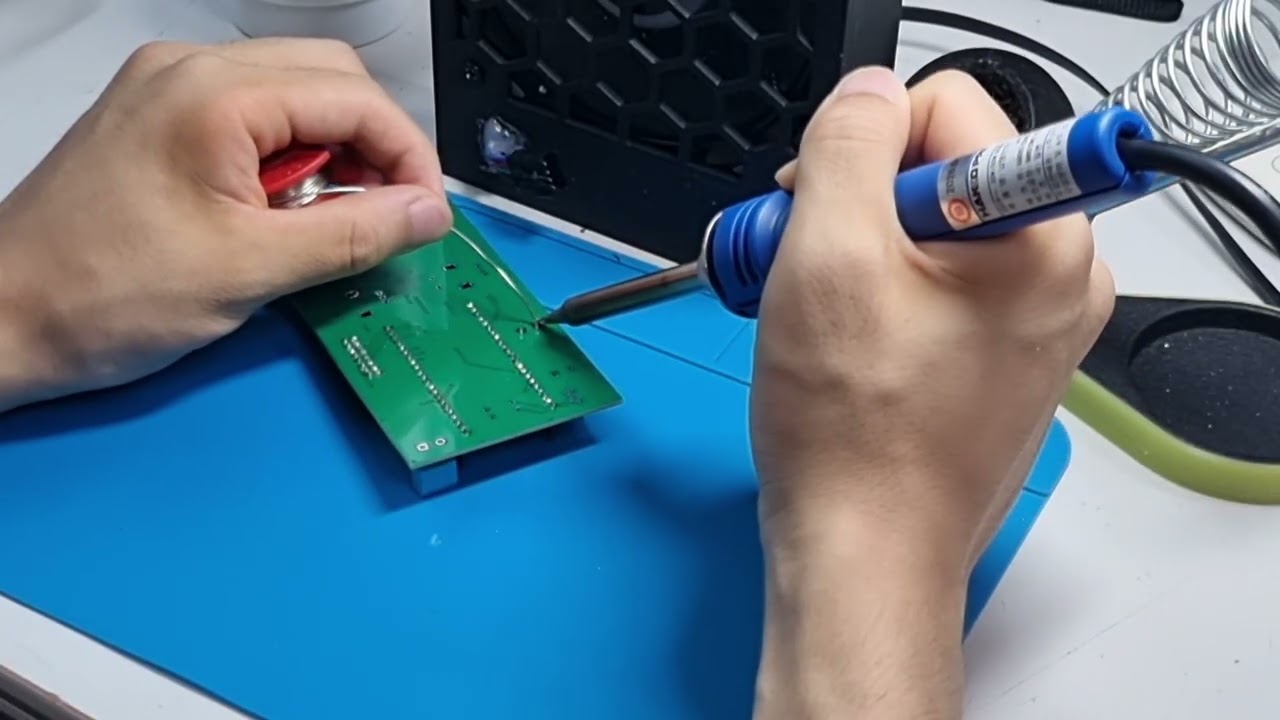](https://youtu.be/NZCjMBCsDAc)
**[▶ Watch on YouTube — Patternflow v3.0 PCB soldering walkthrough](https://youtu.be/NZCjMBCsDAc)**
All parts are through-hole, and the video covers the complete order.
> 📦 **The video was filmed on a v3.0 board — skip the USB-C segment.** It shows `USB1` being soldered (11:00–15:18); **v3.9 has no USB-C footprint at all**, so that step simply doesn't exist on your board. Everything else applies exactly as shown. (Holding a v3.0 board? Leave `USB1`, `R1`, and `R2` unpopulated — Section 2.)
>
> And these photos are why that input is gone — the pitch is tight enough that a bridge is easy to make and hard to spot ([#221](https://github.com/engmung/Patternflow/issues/221)):
>
> | ❌ A bridge like this shorts +5 V to ground | ✅ What a clean joint looks like |
> |---|---|
> | <img src="docs/build-guide/images/v3/06_usbc_bad.jpg" width="100%"> | <img src="docs/build-guide/images/v3/07_usbc_good.jpg" width="100%"> |
Before first power, go over your joints with a multimeter:
<img src="docs/build-guide/images/v3/08_short_check.jpg" width="60%">
Don't plug the ESP32 DevKit in until after the first power check (Section 7).
<details>
<summary><b>ESP32 pin reference</b> — the full 44-pin map. You don't need it for a normal build; it's here for debugging and derivative designs.</summary>
Extracted from the v3.0 netlist (identical functions to v2.x — the same firmware runs on both):
| # | Pin | Function | | # | Pin | Function |
| --- | --- | --- | --- | --- | --- | --- |
| 1 | 3V3 | +3.3V supply | | 23 | GND | GND |
| 2 | 3V3 | NC | | 24 | TX | NC |
| 3 | RST | NC | | 25 | RX | NC |
| 4 | IO4 | ENC1_A | | 26 | IO1 | ENC4_SW |
| 5 | IO5 | ENC2_A | | 27 | IO2 | HUB_CLK |
| 6 | IO6 | ENC3_A | | 28 | IO42 | HUB_R1 |
| 7 | IO7 | ENC4_A | | 29 | IO41 | HUB_G1 |
| 8 | IO15 | ENC2_SW | | 30 | IO40 | HUB_B1 |
| 9 | IO16 | ENC3_B | | 31 | IO39 | HUB_G2 |
| 10 | IO17 | ENC3_SW | | 32 | IO38 | HUB_R2 |
| 11 | IO18 | ENC4_B | | 33 | IO37 | NC (PSRAM internal) |
| 12 | IO8 | ENC1_B | | 34 | IO36 | NC (PSRAM internal) |
| 13 | IO3 | NC | | 35 | IO35 | NC (PSRAM internal) |
| 14 | IO46 | HUB_A | | 36 | IO0 | NC — boot strap (see note) |
| 15 | IO9 | ENC1_SW | | 37 | IO45 | NC |
| 16 | IO10 | ENC2_B | | 38 | IO48 | HUB_C |
| 17 | IO11 | HUB_B | | 39 | IO47 | HUB_LAT |
| 18 | IO12 | HUB_D | | 40 | IO21 | HUB_E |
| 19 | IO13 | HUB_B2 | | 41 | IO20 | NC |
| 20 | IO14 | HUB_OE | | 42 | IO19 | NC |
| 21 | 5V | +5V input | | 43 | GND | GND |
| 22 | GND | GND | | 44 | GND | GND |
</details>
> **GPIO0 / cold-boot note.** The v3.0 board leaves GPIO0 unconnected (no pullup pad). Most modules boot reliably that way, but some show cold-boot lockups from the floating strap pin ([#16](https://github.com/engmung/Patternflow/issues/16)). If yours consistently needs a RESET press after power-on, apply the on-module 10k GPIO0→3.3V fix photographed in that issue — one resistor and it's solved.
## 6. Case Assembly
### ▶️ Video: from printed parts to first power-on
Sections 6, 7, and 9 are covered in **one YouTube video** — the full assembly, wiring, and first boot. Click to watch:
[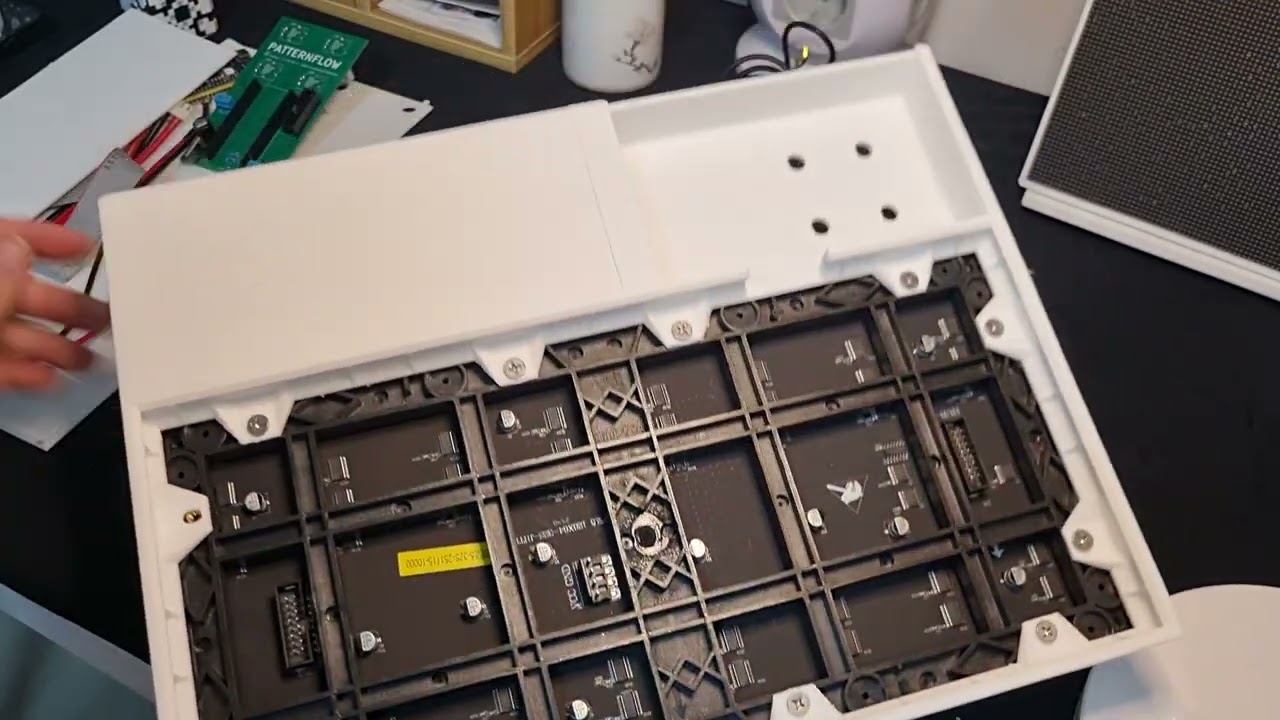](https://youtu.be/J9C9bZgkNKs)
**[▶ Watch on YouTube — Patternflow v3.0 assembly & first power-on](https://youtu.be/J9C9bZgkNKs)**
By now the enclosure halves you bonded in Section 4 have cured and the board is soldered — time to bring them together. The video above walks every step; in writing:
> Printed the **330 mm one-piece body**? Everything in this section is identical — the only thing you skipped is the bonding step in Section 4.
1. **Seat the LED panel in the enclosure with its `HUB-75E IN` connector toward the top** — that's the side the ribbon reaches `J1` from. ⚠️ The panel insertion is very tight — near-zero clearance. Work it in slowly.
2. **Fit the LED-panel mounting part and tighten the screws.** The mounting part is a separate piece precisely because panel bolt-hole positions vary between suppliers — match it to your panel first.
3. **Set the board into its bay and secure the encoders from the front**: attach each encoder's nut and tighten with a wrench or pliers — this locks the board against the front face.
### Finishing touches
- The power bank slides into the internal compartment behind the board bay.
- The four black knobs press-fit onto the encoder shafts — save them for **last**, after the Section 9 checks pass.
## 7. Wiring & First Power-Up
1. Connect the HUB75 ribbon from `J1` to the panel's `IN` connector.
2. Wire `J3` to the panel's power cable (+5V / GND — double-check polarity). The wiring run is shown at **06:57** in the [assembly video](https://youtu.be/J9C9bZgkNKs).
3. Power: stripped USB cable into `J4` (red = +5V, black = GND).
**Do it in this order, it's much easier:**
1. Cut the USB cable and **strip the two power wires** (red = +5 V, black = GND; ignore the data wires).
2. **Thread the cable through the enclosure's cable hole first** — before it's attached to anything.
3. **Clamp the stripped wires into `J4`** on the board and tighten the screws. Give each wire a gentle tug to confirm it's held.
4. *Then* fit the board into the enclosure. Doing it this way means you're never fishing a cable through a hole with the board already in place.
<img src="docs/build-guide/images/v3/17_screw_terminal_wiring.jpg" width="45%">
*Cable already through the enclosure hole, wires clamped into `J4`, board about to go in.*
4. **Before inserting the ESP32:** with power disconnected, continuity-check +5V↔GND at the `J3` terminals (open = good, like the Section 5 check). Then power up once and confirm ~5V across `J3`.
5. Power off, seat the ESP32 DevKit in its sockets (orientation per silkscreen), power on.
## 8. Firmware
The ESP32-S3 module is flashed **separately, outside the PCB**. Already seated it? Just pop it gently out of the sockets, flash it, plug it back in, and connect power — done. **One firmware image serves every board generation** — the pin map is identical on v2.x and v3.0, so there is no board selection to get wrong.
### 8.1 Browser flash (recommended)
No installation required — desktop **Chrome or Edge** only (Web Serial; Firefox/Safari won't work).
> 🔌 **Use the LEFT USB-C port** — the one on your left when the two ports face you. On the ESP32-S3 DevKit that's the board's **native USB** port (labeled `USB`); the browser flasher (Web Serial + Improv) talks to it directly. The right-hand port goes through a separate USB-to-UART bridge chip and is the one Arduino IDE uses (§8.2) — the browser flasher won't see the board on that one.
1. Visit **[patternflow.work](https://patternflow.work)** on a desktop browser.
2. Connect the ESP32-S3 to your computer with a USB-C **data cable**, using the **left port** (see above).
3. Scroll to the **Patterns** section, click **"Flash Patternflow"**, pick the serial port, and follow the on-screen steps. Wi-Fi can be provisioned right there too (Improv-Serial).
4. Disconnect, seat the module back into the board sockets (orientation per silkscreen), and connect power.
5. **Load the patterns.** The image ships with **Origin only** — the rest live on the device's filesystem instead of inside the firmware, which is what freed the memory for everything else. Open **[the decks shelf](https://community.patternflow.work/community/decks)** and press **Install to my board** on the **Basics** pack: 33 patterns, one click, no account. Your browser fetches the pack and hands it to the board over your Wi-Fi, so the board is never talking to the internet itself.
> 🎛️ **One pattern after flashing is correct, not a failed install.** It used to be 34 baked into the image. They moved out so that patterns can be added and removed without reflashing, which is also how anything you make yourself reaches the panel.
> 🔍 **Nothing in the port list?** A module that is running its own firmware does not always announce itself, so put it into download mode by hand before you look again:
>
> 1. Press and **hold BOOT**
> 2. **Tap and release EN / RST** (the reset button)
> 3. **Release BOOT**
>
> The picker should now offer a line like `USB JTAG/serial debug unit (COM4) – Paired`. The number depends on which USB port you used.
>
> Still nothing? It is almost always the cable — a charge-only USB-C one enumerates nothing at all. **There is no driver to install on this port**: the ESP32-S3 handles USB itself, so the CP2102 / CH34x links on the flasher's troubleshooting screen do not apply here.
> 📶 **Changing Wi-Fi later.** The network you set during flashing is **saved on the device and reused on every boot** — it stays until you overwrite it. To move Patternflow to a different Wi-Fi, either **re-flash from the browser** (you'll set the new network during Improv provisioning), or in Arduino IDE do a **full erase** (Tools → *Erase All Flash Before Sketch Upload* → *Enabled*) and re-upload. A plain re-upload does **not** clear the stored credentials.
> 📡 **No Wi-Fi where you are? The panel is one.** About fifteen seconds after it finds no known network, the panel raises its own hotspot: `patternflow-xxxx` (the name on its NETWORK screen - hold K2), password `patternflow`. Join it from a phone or a laptop and open `http://192.168.4.1/` - the whole console, including the Wi-Fi page, so you can add the network for wherever you are next and the panel joins it at once. The phone will say the network has no internet; that is true, and it stays connected. Mode (`auto`, `always`, `off`) and the password are on the console's Wi-Fi page.
<img src="docs/build-guide/images/web_flash.jpg" width="33%"> <img src="docs/build-guide/images/esp32_insert.jpg" width="33%">
*Photos from the v2 guide — the flashing flow is identical on v3.*
### 8.2 Arduino IDE (custom builds)
> 🔌 **Use the RIGHT USB-C port** for Arduino IDE — the one on your right when the ports face you, labeled `UART`/`COM`. It's the USB-to-UART bridge Arduino uploads through; the left (native `USB`) port is for the browser flasher (§8.1). If the IDE doesn't see a serial port, you're likely on the wrong one.
- Board settings: *ESP32S3 Dev Module*, PSRAM: *OPI PSRAM*, Flash: *16MB*, USB CDC On Boot: *Enabled* — full setup in [`firmware/README.md`](firmware/README.md). CDC On Boot is what puts the browser flasher's Wi-Fi setup on the left `USB` port; with it disabled that step moves to the other socket.
- Running a panel other than the BOM-linked one? **Try the stock firmware first** — the default `PANEL_PROFILE` (`PANEL_STANDARD`) drives most panels, including the FM6124 in the reference build. Only if the panel comes up **completely dark** do you change it in `config.h` to match your driver IC (`PANEL_HIGHREFRESH`, `PANEL_FM6124`, `PANEL_ICN2038S`, `PANEL_MBI5124`, `PANEL_DP3246`). See [docs/panel-compatibility.md](docs/panel-compatibility.md).
- To wipe stored Wi-Fi credentials, enable **Tools → Erase All Flash Before Sketch Upload** before uploading (see the Wi-Fi note in §8.1).
- **ArduinoOTA** works over Wi-Fi after the first join — functional, but the flasher and wired upload are the primary paths.
### Want OSC / MIDI / Ableton control? Install the Audio edition
OSC, network MIDI and audio-react ship in the **Audio** edition: open [patternflow.work/editions](https://patternflow.work/editions), pick Audio, and it installs from the browser over Wi-Fi with your patterns and settings intact — no rebuild, no secrets file, no cable. The [Ableton bridge](integrations/ableton/) and the [MIDI walk-through](docs/midi-ableton.md) start from there. (Building your own image with a different feature set is [docs/EDITIONS.md](docs/EDITIONS.md).)
## 9. Final Checks
1. Slide the power bank into its compartment and connect it via the `J4` cable.
2. The panel lights up with the default pattern (Origin) within a second or two.
3. Turn all four knobs — each should visibly change the pattern.
4. Press-click each encoder once; long-press **K4** (~1s) to enter pattern select, rotate to browse, long-press again to exit.
5. Long-press **K1** for the global brightness mode; **K2** long-press shows the OSC info screen.
6. Power-cycle once and confirm it boots cleanly with no RESET press needed (see the GPIO0 note in Section 5 if it doesn't).
7. All good? **Close the back panel**: hook the right edge in first, then press along the snap-fit until it clicks shut (shown at **09:11** in the [assembly video](https://youtu.be/J9C9bZgkNKs)). Press the knobs onto the shafts last.
## 10. Known Issues & Design Notes
- **Tight LED panel fit / bonded-seam gaps** — see the Section 4 bonding notes and Section 6 ([#169](https://github.com/engmung/Patternflow/issues/169)).
- **USB-C input removed in v3.9.** A USB-C-powered v3.0 board ran normally for 20–30+ minutes, then smoked at a connector pin and destroyed the receptacle and surrounding power path ([#221](https://github.com/engmung/Patternflow/issues/221)). Whether that was a soldering defect on the tight-pitch THT pins or a structural limit of the part under the matrix's peak current was never settled — so the footprint came off the board instead of shipping an input that must not be populated. **Every build powers through the `J4` screw terminal** (Section 2); on a v3.0 board, leave `USB1`/`R1`/`R2` bare.
- **C11 (1000µF bulk cap) retained** — Patternflow is power-bank-powered; the cap stabilizes the boot transient. Designing a desktop-USB derivative? Drop it to ≤50µF.
- **GPIO0 left floating by design** — most modules don't need the pullup; if yours does, it's a one-resistor fix (Section 5 note, [#16](https://github.com/engmung/Patternflow/issues/16)).
- **Encoder direction is handled in firmware** — the default suits the Bourns PEC11R; if your encoders read backwards, or one click moves two steps, fix it per knob on the device's `/knobs` page — no rebuild; `INVERT_ENCODER` in `config.h` is only the compile-time default.
- **No LED-matrix bump trimming.** The enclosure recesses the panel's two alignment bumps, so the old nipper step ([#19](https://github.com/engmung/Patternflow/issues/19)) is gone. The design also gives you a snap-fit back panel and two wall-mount holes.
---
**Device built? Now fill it.** The **[Pattern Guide](PATTERN_GUIDE.md)** covers everything that comes next — pulling community patterns onto your device over Wi-Fi (a few seconds, no cable), generating your own in Pattern Lab, verifying them on hardware, and sharing them back. The Arduino IDE route above stays for firmware development; see [`firmware/CUSTOM_PATTERNS.md`](firmware/CUSTOM_PATTERNS.md) for the low-level pattern format.
*Licenses: firmware & web MIT; hardware & designs CC-BY-SA 4.0.*
07e931b46This file is pinned to the selected release. Download the original to open it in your design tool.